
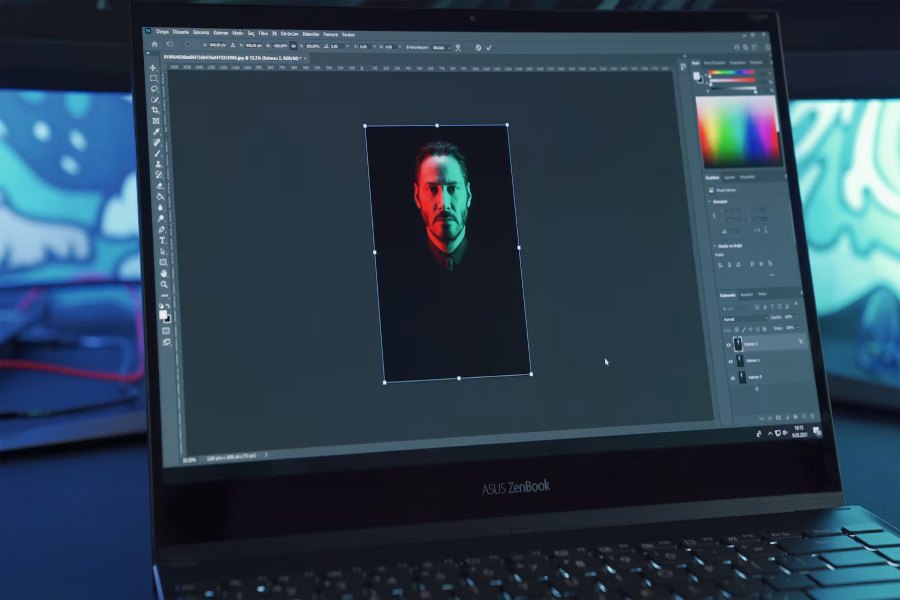
Need a bigger version of a small photo? Luminar makes it painless. Its tool to enlarge image files adds real detail while scaling up, not just bigger, blurrier pixels.
A photo that looks sharp on a phone can look rough once printed or projected. That gap surprises most people the first time they try it.
What Sets This Apart
- Luminar uses an AI model trained on large photo collections to rebuild missing detail.
- Basic resizing tools simply stretch existing pixels, causing blur.
- Many online enlargers cap file size or add a visible watermark.
- Luminar keeps edges, skin, and textures looking natural at any scale.
- Enlarging up to six times the original size takes one click.
Why Bigger Usually Means Blurrier
A small photo simply does not contain enough pixel data for a large print. Stretching it only spreads that limited data thinner. Ordinary resizing fills the new pixels with averages of the old ones, so contrast at the edges drops and fine texture disappears.
The DPI Myth
Many people try to fix this by changing the DPI value in the file settings. Going from 72 to 300 DPI does not add a single pixel. It only changes how large the existing pixels are printed. To get a sharp large print, you need more pixels, and that is exactly what upscaling provides.
A Quick Fact
A 12-megapixel phone photo measures roughly 4,000 × 3,000 pixels. At 300 pixels per inch, that prints at about 34 × 25 centimeters, enough for a large print on the wall. A banner or a billboard needs far more.
2×, 4× or 6×: Which Factor to Choose
Bigger is not automatically better. Pick the factor that gets you to the size you actually need. Doubling is the safe choice for most photos and keeps results close to the original. Four times works well when the source is clean and sharp, for example a large print from a good camera file. Six times is for cases where nothing else will do, such as a tiny scan, and it asks the most of the original.
A practical rule: enlarge only as far as you need, and check the result at 100 percent. If it looks convincing, stop there.
Everyday Situations This Solves
Old photos scanned at low resolution, small product images from a supplier, a logo saved too small: all become print-ready again after you enlarge image files with the right tool.
- Social media banners: cover images need generous dimensions, and a small source won’t fill them.
- Desktop wallpapers: a phone shot rarely matches a large monitor without help.
- Shop listings: platforms often ask for a minimum size, and supplier photos fall short.
- Family prints: the old scan finally becomes a framed picture.
Enlarging vs. Increasing Resolution
The two terms often get mixed up. Enlarging means making the picture bigger, in pixels or in print size. Resolution, in the print sense, describes how many pixels fit into each inch. For a sharp result you need both: enough total pixels, and a print size that doesn’t stretch them too thin. More pixels come first, and the print size follows from them.
Which File Format to Use
- JPEG: good for sharing and for the web at high quality settings.
- PNG: lossless, a good choice for graphics, logos, and screenshots.
- TIFF: lossless and the usual choice for print.
- WebP: small files for websites.
Print vs. Screen: How Many Pixels Do You Need?
For screens, the target is simply the display size in pixels. A Full HD screen shows 1,920 × 1,080 pixels, about 2.1 megapixels. A 4K screen shows 3,840 × 2,160, about 8.3 megapixels. For print, the common standard is 300 pixels per inch at the final size, so an A4 page needs roughly 8.7 megapixels.
That is why a photo can look fine on a monitor and still disappoint on paper. Decide where the picture will end up first, then enlarge to that pixel count.
Common Mistakes When Enlarging
- Enlarging a screenshot of a photo instead of the original file.
- Upscaling several times in a row. Each round adds guesses on top of guesses.
- Starting from a heavily compressed JPEG. Blocky artifacts get bigger along with the picture.
- Skipping the zoom check. Faces and text show problems first.
A Simple Workflow
- Find the best original you have, ideally the file straight from the camera or scanner.
- Crop to your final composition first, then enlarge once to the target size.
- Zoom to 100 percent and check edges, faces, and any text.
- Export as TIFF or PNG if you plan to edit further, or as a high-quality JPEG for sharing.
- Keep the original untouched and save the enlarged version under a new name.
Size Stops Being a Problem
A small file does not have to limit what you can do with a photo. With the right upscaling tool, size stops being a problem, and old images get a second life.
To test it on your own pictures, visit the Luminar website for the download and a free trial. Pick the smallest photo you wish were bigger.